Nous utilisons des cookies de mesure d’audience afin d’améliorer votre expérience utilisateur. Vous pouvez accepter ou refuser ces cookies à tout moment. Pour en savoir plus, consultez notre page Mentions légales & Politiques de protection des données.
In Computational Fluid Dynamics (CFD) software, license management is crucial for ensuring that applications like Star-CCM+, Ansys, Converge or many others, operate correctly. A common challenge is configuring the vendor daemon ports in license files. By default, these ports are assigned dynamically, which can lead to connectivity issues, especially when operating across different networks or through firewalls. Fixing (assigning static) vendor ports ensures consistent communication between the license server and client machines, enhancing stability and security.
This tutorial provides a step-by-step guide to fixing vendor ports for CFD software licenses on both Windows and Linux systems, specifically focusing on Star-CCM+, Ansys, and Converge. It is designed for beginners, with clear instructions and explanations to facilitate understanding.
Prerequisites
Before proceeding, ensure you have:
Administrative access to the license server machine.
The ability to edit license files.
Knowledge of the current network configuration, including any firewall settings.
The specific port numbers you intend to assign as static ports.
Please inform your IT department and especially your IT security team before editing license servers and network policies.
Edit the license file
Understanding the license file structure
License files typically contain lines specifying the server and vendor daemon details. A standard license file includes:
SERVER Line: Defines the license server's hostname and the port number for the license manager (e.g., lmgrd for FlexNet Publisher).
VENDOR Line: Specifies the vendor daemon's name and its associated port.
By default, the vendor daemon port is dynamic. To fix this, you'll assign a static port number in the license file.
Choosing Appropriate Port Numbers
Select port numbers that are:
Not in use by other applications.
Allowed through your firewall settings.
Within the range of 1024 to 49151 to avoid conflicts with well-known ports.
For example, commonly used ports for license servers include 1055 and 1056.
Editing the license file
For Ansys
On Windows:
Stop the License Manager Service:
Open the Ansys License Management Center.
Navigate to the "Start/Stop/Reread" tab.
Check the "Force Server Shutdown" box.
Click "Stop Server".
Edit the License File:
Locate the license file, typically found at C:\Program Files\ANSYS Inc\Shared Files\Licensing\license_files\ansyslmd.lic.
Open the file with a text editor.
Modify the VENDOR line to include a static port. For example: VENDOR ansyslmd PORT=1056
Save and Restart the License Manager:
Save the changes to the license file.
In the License Management Center, click "Start Server" to restart the service.
On Linux:
Stop the License Manager Service:
Open a terminal.
Execute the command to stop the license manager. The command may vary depending on your setup, but commonly: sudo service ansyslmd stop
Edit the License File:
Locate the license file, typically at /ansys_inc/shared_files/licensing/license_files/ansyslmd.lic.
Open the file with a text editor, such as nano or vi.
Modify the VENDOR line to include a static port: VENDOR ansyslmd PORT=1056
Save and Restart the License Manager:
Save the file and exit the editor.
Start the license manager service: sudo service ansyslmd start
For StarCCM+
On Windows and Linux:
Locate the license file:
The license file is typically named license.dat and can be found in the installation directory of Star-CCM+.
Edit the license file:
Open the license.dat file with a text editor.
Locate the VENDOR line and assign a static port. For example: VENDOR cdlmd PORT=28000
Save and restart the license manager:
Save the changes.
Restart the license manager service. The method to restart may vary; consult the StarCCM+ documentation for specific instructions.
For Converge
On Windows and Linux:
Locate the License File:
The license file is typically named converge.lic and is located in the Converge installation directory.
Edit the License File:
Open the converge.lic file with a text editor.
Modify the VENDOR line to include a static port: VENDOR converge PORT=27000
Save and Restart the License Manager:
Save the file.
Restart the license manager service as per Converge's documentation.
Configure your network
Your server must be reachable from our system using TCP/IP. To secure the connection between your license server and Qarnot you can either use:
A VPN Connection (please contact us to setup a VPN connection)
Whitelist Qarnot IP (please contact us to get Qarnot’s IPs) in your firewall or NAT
At this step you should contact your IT department to proceed to the network configuration.
To learn how to whitelist Qarnot IP please consult our article.
Verifying the Configuration
Before continuing to this step please ensure you are in contact with Qarnot, that your that the gateway is configured correctly.
To confirm that your server is up and reachable from Qarnot, please follow the following steps.
Check the License Manager Status:
Open the License Management Center or use command-line tools to display the current status.
Verify that the vendor daemon is running on the assigned port.
Test Qarnot’s Connectivity:
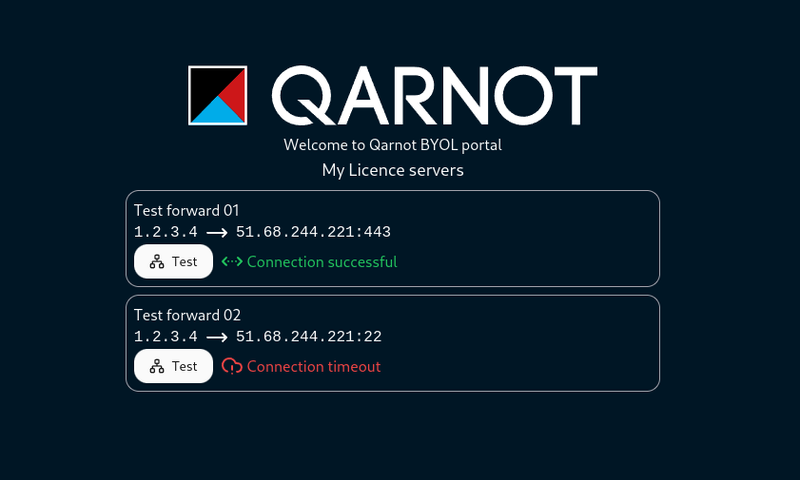
Go to the BYOL licence portal that has been sent to you by qarnot’s team.
You can now verify if Qarnot’s gateway are able to connect to your license server.
click on “Test” to start the connection test.
Troubleshooting
When issues arise, use the following checklist to diagnose and resolve problems:
Service start/stop issues:
Verify service status: use your system’s service management (e.g., Windows Services or systemctl status on Linux) to ensure the license manager is running.
Review logs: check the license manager log files for error messages (e.g., file paths like .../license_log.txt). Look for issues related to port binding or daemon failures.
Connectivity problems:
Ping test: from a client machine, ping the license server to confirm network connectivity.
Telnet test: use telnet to test connectivity to the static ports (e.g., telnet <server_ip> 1056). A blank screen typically indicates a successful connection.
DNS resolution: ensure that the hostname specified in the license file matches the client configuration. If problems persist, try using the IP address directly.
Port conflicts: if the chosen port is already in use, select a different port and update the license file accordingly.
Firewall blockages:
Ensure that the firewall allows traffic on the specified ports. Double-check both inbound and outbound rules.
Temporarily disable firewall: Temporarily turn off the firewall on both client and server machines to determine if it’s causing the issue. Remember to re-enable and configure the proper exceptions afterward.
Port scanning: Use tools such as nmap to verify that the static ports are open and accessible from the client machine.
License file issues:
File syntax: double-check the syntax of your license file. Even a small typographical error in the VENDOR line can prevent the service from starting.
Version compatibility: ensure that the license file version is compatible with your CFD software version.
If the license manager fails to start after modifications, revert the changes and consult the software's support resources for assistance.
Error codes:
Review documentation: refer to your vendor’s documentation for specific FlexNet error codes (for example, errors like -15 or -96) which may indicate connectivity or configuration issues.
Server logs: look for recurring error messages in the logs that can guide you to the specific step causing the failure.
Related Articles
Fore more information on how to use our platform, please take a look at our guides, tutorial, and documentation article: