Nous utilisons des cookies de mesure d’audience afin d’améliorer votre expérience utilisateur. Vous pouvez accepter ou refuser ces cookies à tout moment. Pour en savoir plus, consultez notre page Mentions légales & Politiques de protection des données.
Configure IP Whitelisting and Port Forwarding to allow Qarnot to access to your self-hosted licenses
When you host a license server on-premises (in your office) and want to use it with Qarnot, ensuring secure and reliable access is essential. Two key components help achieve this:
Port Forwarding (NAT/PAT): Directs incoming traffic from your public IP (or NAT device) to the correct internal IP address and port on your license server.
IP Whitelisting: Restricts access so that only traffic from Qarnot can reach your server.
This tutorial provides step-by-step instructions to set up these features, ensuring your license server is both accessible and secure.
We recommend contacting your IT Administrator to perform this tutorial.
Prerequisites
Before you begin, ensure that you have:
Administrative credentials for the license server and for your office router/firewall (or contact you IT administrator)
Configured your Licence server (see our dedicated article)
Static internal IP address assigned to your license server (e.g., 192.168.1.10).
Port details for your license server (for example, using FlexNet Publisher you might have a SERVER port such as 28000 and a VENDOR (daemon) port such as 28001).
Qarnot’s gateway IP addresses (please contact Qarnot to get the IP).
Basic knowledge of your router’s configuration interface (consult your router’s manual if needed).
Configure Port Forwarding on Your Router (NAT/PAT)
Access the Router’s Administration Interface:
Open a web browser and enter your router’s IP address. Log in using your administrator credentials.
Locate the Port Forwarding Section:
Depending on your router, this section may be named “NAT,” “Port Forwarding,” “Virtual Servers,” or “Applications & Gaming.”
Create Port Forwarding Rules:
For the License Server’s SERVER Port:
External Port: 28000 (or a custom port if desired)
Internal IP: (your license server’s IP)
Internal Port: 28000
Protocol: TCP (or as specified by your license server’s documentation)
For the License Server’s VENDOR Port:
External Port: 28001
Internal IP: (your license server’s IP)
Internal Port: 28001
Protocol: TCP
Save or apply each rule.
Configure IP Whitelisting on Your Router/Firewall
Most modern routers and dedicated firewalls let you restrict incoming traffic based on source IP addresses. If your router supports this feature, proceed as follows:
Locate the Firewall or Access Control Section:
Look for sections labeled “Access Control,” “IP Filtering,” or “Firewall Rules.”
Create a New Rule for Qarnot IP Addresses:
Rule Scope: Apply the rule to incoming traffic destined for the forwarded ports (e.g., 28000 and 28001).
Optional – Use Whitelisting Features in the License Server:
Some license managers (like FlexNet) support options to restrict usage by user or IP. If available, configure these settings in your license manager’s configuration file (e.g., using an options.dat file with lines such as INCLUDEALL USER <username> or group entries).
Test the Complete Setup
Test the connection with Qarnot
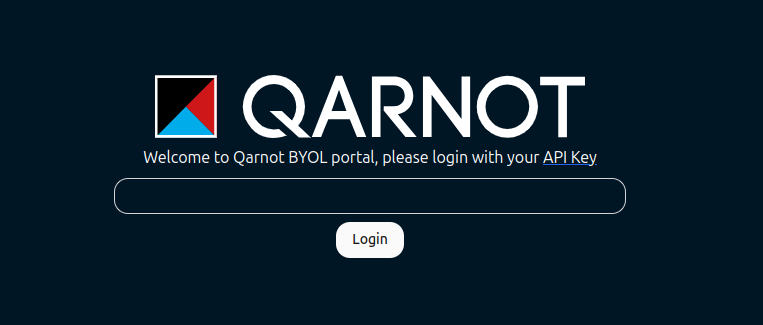
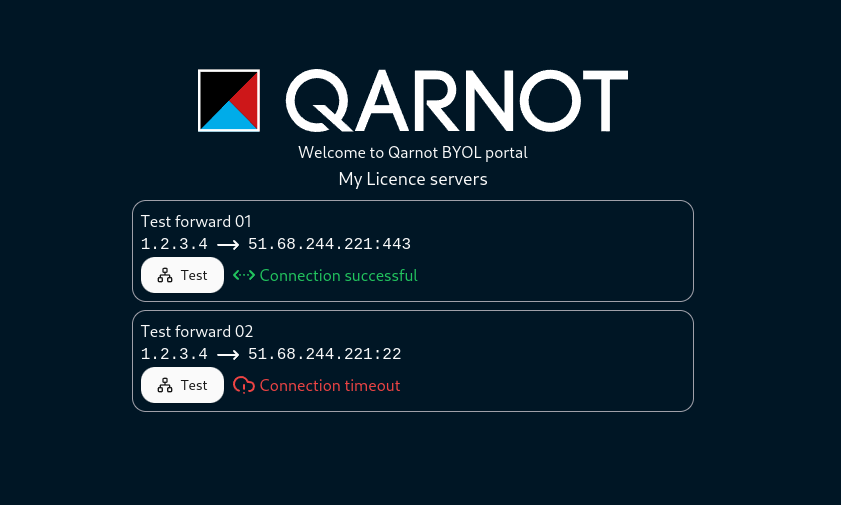
Go to the BYOL licence portal that has been sent to you by qarnot’s team
You can now verify if Qarnot’s gateway are able to connect to your license server
click on “Test” to start the connection test
Verify Whitelisting:
Test from a non-whitelisted IP address (for example using https://ping.eu/port-chk/) to confirm that the connection is blocked.
Review your router/firewall logs for any denied access attempts to ensure the whitelist is functioning as expected.
Additional Security Considerations
Use a VPN for Remote Access: If you don’t want to open your network, please contact us to set up a VPN between Qarnot and your network
Regularly Update Whitelists: Periodically review and update the list of trusted IP addresses to ensure that only current, authorized users have access.
Monitor and Log Access: Enable logging on your router or firewall to track incoming connections. This can help you identify any unauthorized attempts and further tighten security.
Keep Your Firmware Updated: Regularly update your router/firewall firmware to protect against known vulnerabilities.
To mitigate potential security risks, ensure the IT Security team is informed and that all actions are compliant with established company security policies.
Related Articles
Fore more information on how to use our platform, please take a look at our guides, tutorial, and documentation article: